> For the complete documentation index, see [llms.txt](https://support.evite.com/llms.txt). Markdown versions of documentation pages are available by appending `.md` to page URLs; this page is available as [Markdown](https://support.evite.com/products/invitations/general-and-troubleshooting/phishing-emails.md).
# Phishing Emails
How to tell the difference between a real Evite and a phishing email
Evite has seen a notable rise in phishing scams. Scammers send emails that look like Evite Invitations but are not sent by Evite. These fake emails use Evite’s branding and formatting to trick recipients into clicking malicious links.
The good news: real Evite emails have clear, verifiable signals that distinguish them from fakes. Here’s how to spot them.
### **First, what is phishing?**
Phishing is when a scammer sends an email designed to look like it's from a trusted source to trick you into clicking a link or handing over personal information. The emails can look surprisingly convincing. The sender, the branding, even the layout can seem legitimate. That’s why it’s important to know how to distinguish them.
### **Three ways to check for phishing**
There are three reliable signals that separate a real Evite from a fake. If you’re not sure if an email is actually from Evite, try all three.
#### **1: Check the sender’s email address**
This is the single most reliable indicator. Real Evite emails ONLY ever come from the domain evite.com and verified subdomains of evite.com.
All these domains are authenticated with SPF, DKIM, and DMARC. If you use Gmail, you can verify this by clicking the three-dot menu in the email and selecting “Show original” — all three will show as PASS.
This is what a legitimate email from Evite will look like.
Phishing emails will sometimes use what look like personal email or Gmail addresses to send. This is a clear red flag. Evite will never send from a gmail.com, yahoo.com, hotmail.com, or any personal email address.
This is what a phishing email may look like.
**Be aware:** If the sender appears to be someone you know personally (e.g., a friend’s email address), their account may have been hacked and used to send phishing emails. This is a different—though related—scam. Evite is not involved in that scenario either.
#### **2: Hover over links before clicking**
Before clicking any button or link in an email, hover your mouse over it (on desktop). The destination URL will appear in the bottom-left corner of your browser or email client.
**Example:**
Step 1: Hover over the “View & RSVP” button or any link in the email.
Step 2: Look at the URL that appears at the bottom of your screen.
Real Evite links go to or . Scam links go somewhere else entirely.
**Key rule:** If the hovered URL does not contain evite.com as the main domain, treat the email as a phishing attempt regardless of how legitimate it looks.
#### **3: Verify email authentication headers (advanced)**
We reviewed this briefly in item #1, but for users who want technical confirmation, Gmail and most email clients allow you to inspect the full email headers and verify whether the message passed authentication checks.
**How to check in Gmail:**
1. Open the email in Gmail.
2. Click the three-dot menu (⋮) in the top-right corner of the email.
3. Select “Show original”
4. Look for SPF, DKIM, and DMARC — all three should say “PASS” for legitimate Evite emails.
Scammers who try to spoof Evite’s domains will generally fail these checks and be filtered to spam automatically. If a phishing email does reach your inbox and you check the headers, you will typically see FAIL or SOFTFAIL for one or more of these fields.
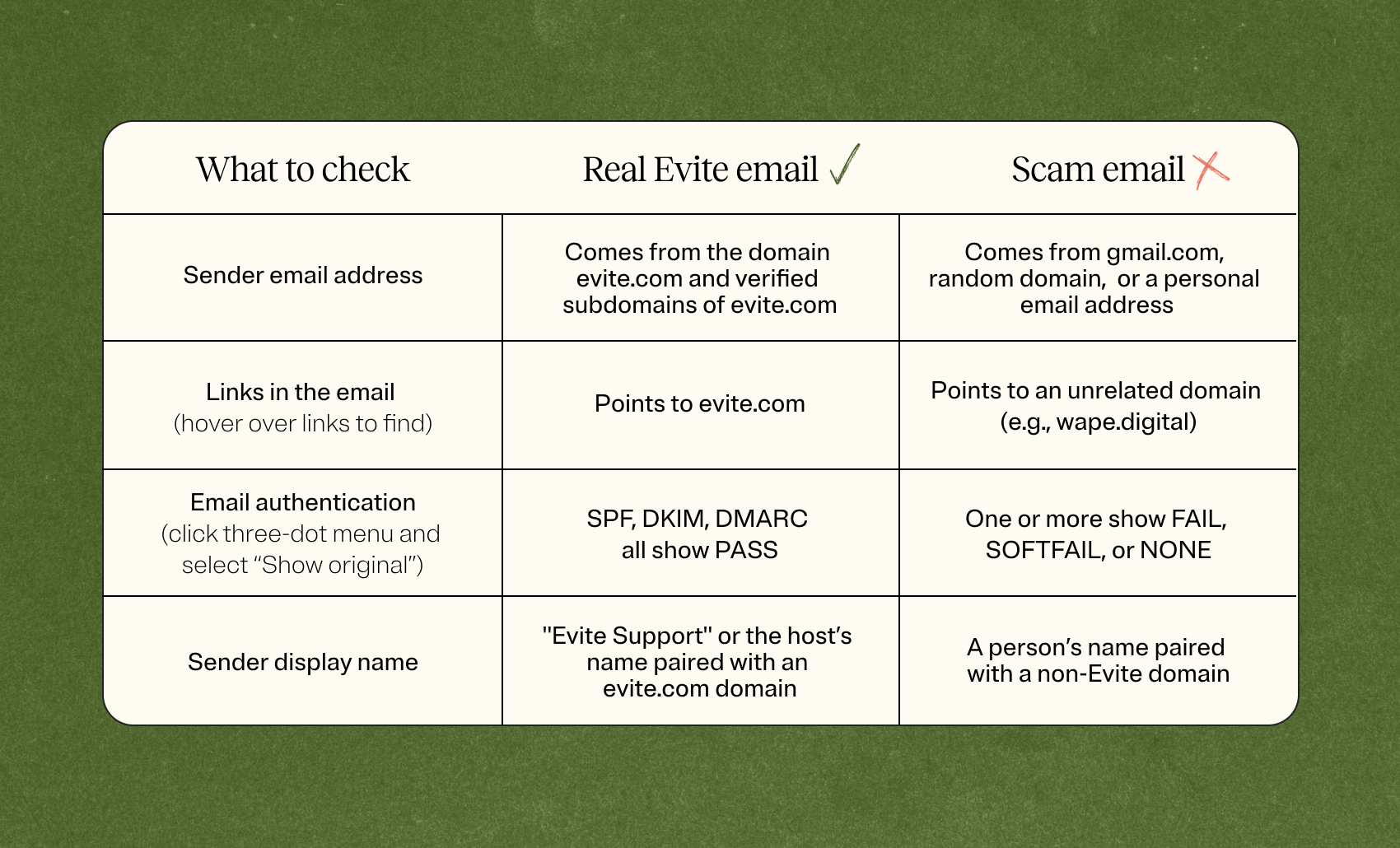
### **At a glance: real vs. phishing**
Reference this cheat sheet for a quick look at how to detect phishing emails.
### **What to do if you receive a phishing email**
If you have received a suspicious email claiming to be from Evite:
1. Do not click any links in the email.
2. If you already clicked a link, clear your browser’s cookies and cache, and run an anti-virus scan on your device.
3. Report the email as phishing in your email client (Gmail: three-dot menu → “Report phishing”).
4. Contact Evite customer support if you have questions or concerns.
5. If it appears the sender’s personal email account was hacked (i.e., a friend’s address sent you a fake-looking Evite), notify that person so they can secure their account.
We hope these tips help you keep your account safe from any future phishing attempts.
.png)
.png)